Sounds and zoom
Add built-in sound effects or your own sounds, set volume and fades, lower the stream under a sound, set a clip's volume, and add Punch-in, Slow push and Zoom to box zooms.
Last updated Nov 24, 2026
Sounds sit on the Sounds lane and zooms on the Zoom lane of the Video editor. Both are drawn into the finished video.
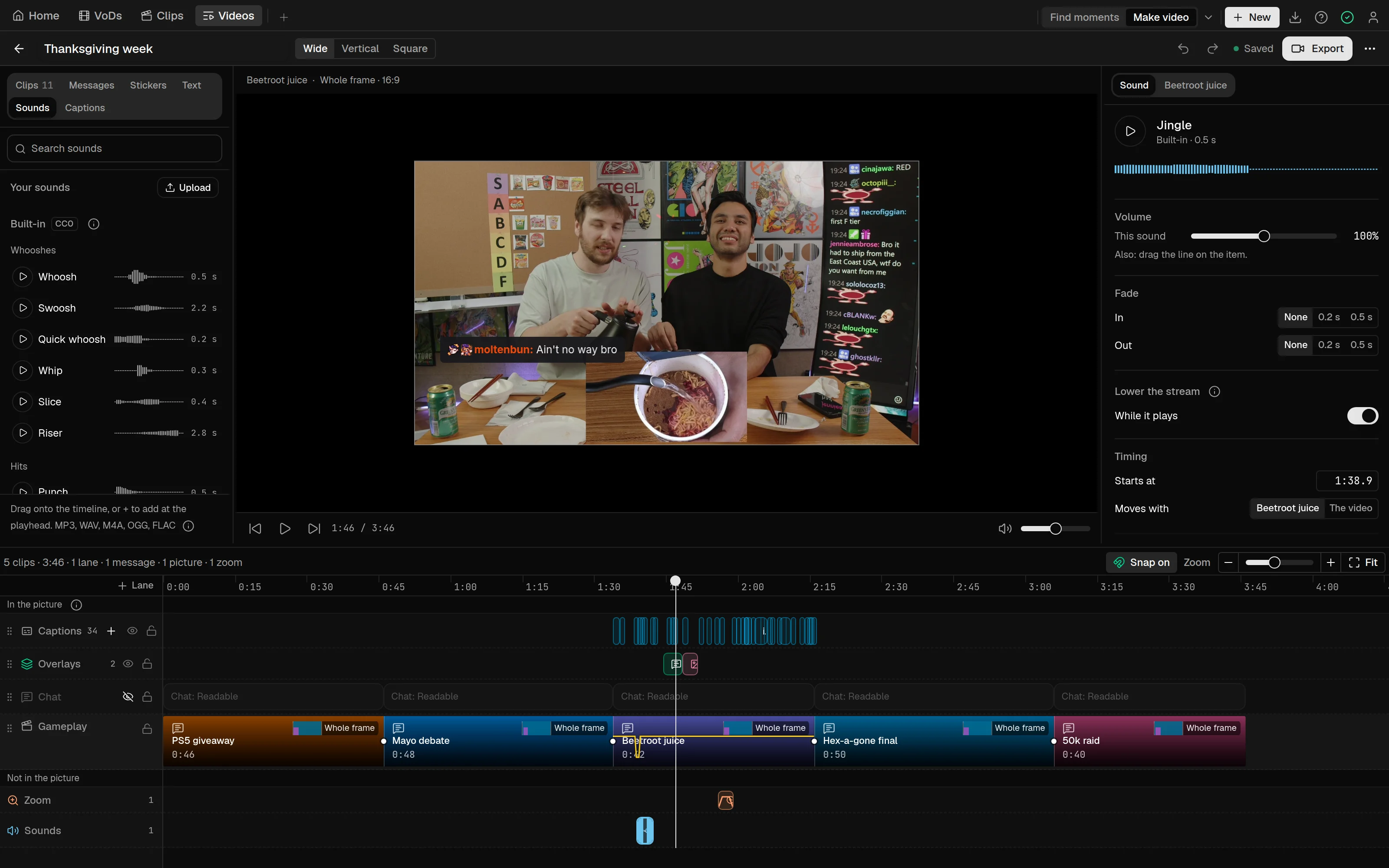
Add a sound
The library's Sounds tab has Your sounds first, then the built-in sounds. Press ▶ to hear one. Double-click it or press its + to add it at the playhead, or drag it onto the timeline.
- Built-in: 32 sound effects in the groups Whooshes, Hits, Tones and Game. They are CC0: free to use anywhere, no credit needed. Where each one comes from is on the credits page.
Uploadtakes MP3, WAV, M4A, OGG or FLAC files up to 50 MB and 10 minutes. Sounds are evened out to a similar loudness. Uploading needs a plan or an active trial, your sounds are there in all your videos, and they count toward your plan's storage.
A sound's settings
Select a sound to open it in the inspector:
- The volume, from 0 to 200 %.
InandOutfades:None,0.2 s,0.5 sor1 s, as far as the sound is long enough.Lower the stream,While it plays: the stream drops to 30 % with a short ramp, then comes back. It starts on for sounds longer than 10 seconds, for music and voice-overs.Starts at, andMoves with: the clip it sits on, orThe video.
A clip's volume
A selected clip has its own volume, from 0 to 200 %, and Mute. The change goes to that clip or to every clip of the video. A vertical's Sound tab has the same control.
Above 100 % the preview only plays louder for some clips; the finished video uses the volume you set.
Zoom
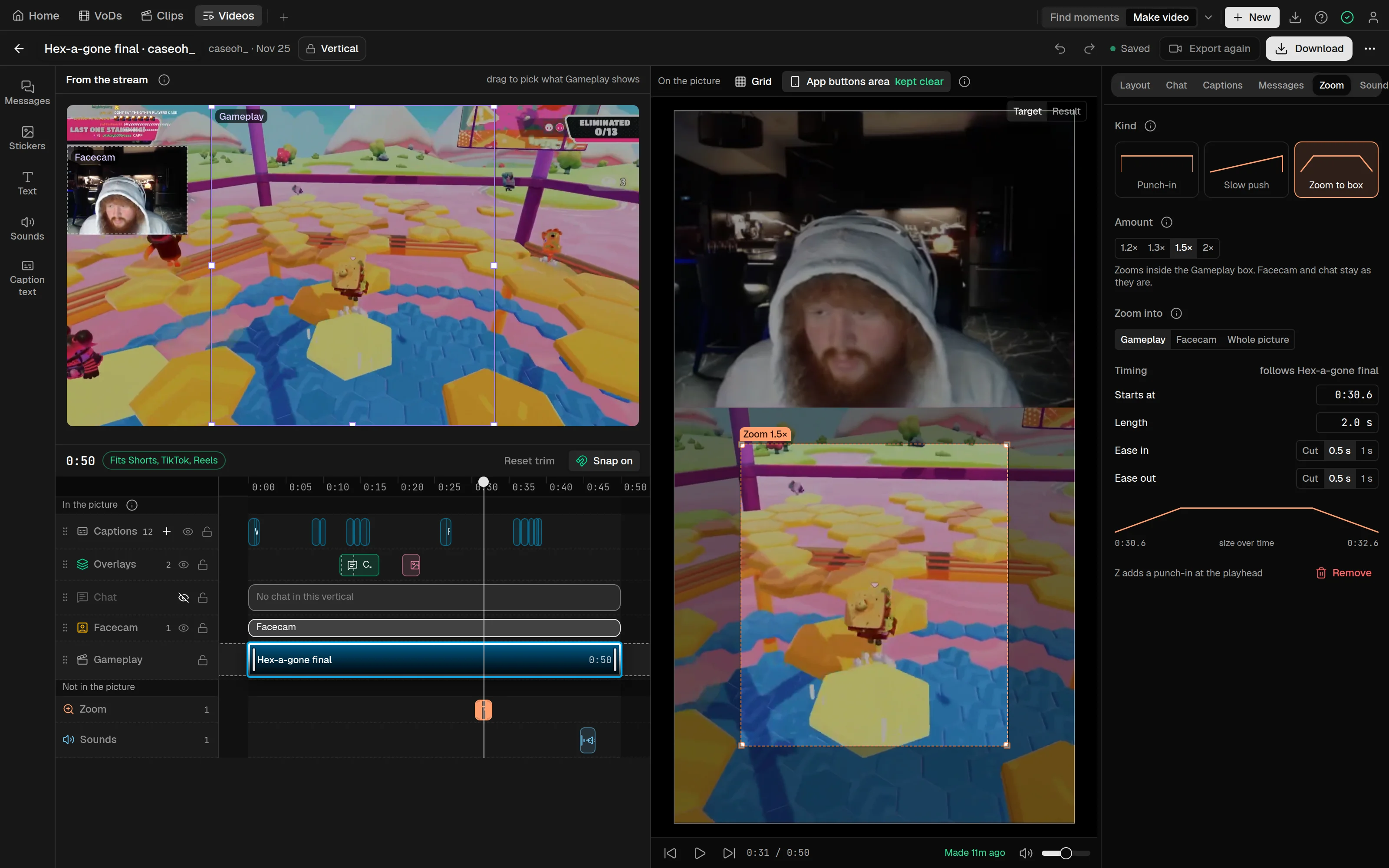
A selected zoom has three kinds:
Punch-incuts in and out.Slow pushcreeps in.Zoom to boxeases in on a box on the picture, holds, and eases out.Ease inandEase outareCut,0.5 sor1 s.
The amount is 1.2×, 1.3×, 1.5× or 2× (up to 2×; a 1080p stream gets soft past that). When the clip's layout has a facecam box, Zoom into picks Gameplay, Facecam or Whole picture. To set its timing, drag the zoom or its edges on the Zoom lane; in a vertical, the inspector has Starts at and Length.
In DaVinci Resolve
The DaVinci Resolve project carries sounds as audio clips with their volume. Zooms and the stream lowered under a sound are not included: a marker shows where each one was. A clip's own volume is not carried over. See Open it in DaVinci Resolve.
Messages and pictures
Put single chat messages or a small chat moment on the video, pick their style and animation, and add emotes, stickers and your own pictures.
Downloads and the desktop app
How your downloads reach your computer in the browser, and what the vod.ing desktop app for macOS, Windows and Linux changes about saving.