Chat sync and delay
Why chat can run a few seconds late next to the video, how to set the delay for a streamer or one VoD, and what happens to rendered overlays.
Last updated Oct 26, 2026
Twitch chat trails the video by a few seconds, and the gap is different for each streamer. The chat delay is that gap in seconds. A positive delay shifts chat earlier to match, in the editor and in the chat overlays you render.
Open the card
The Chat panel header shows a button with the current delay, such as +4.5 s. Its tooltip is Chat delay and tells you where the value comes from. The dot on it is amber while no delay is set.
If no delay is set for the streamer, the panel also shows a note under the messages, Chat looks late?, with Set the delay and Later.
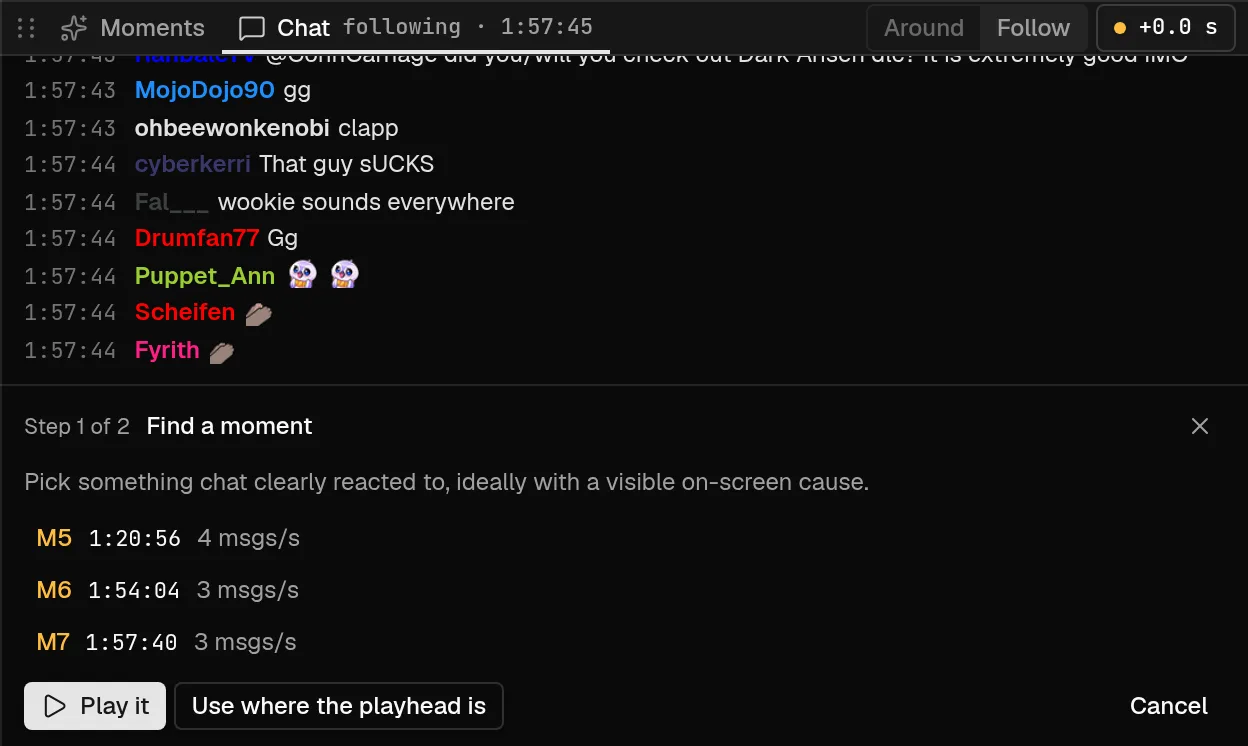
Step 1 of 2: find a moment
The card is titled Chat sync and opens on Step 1 of 2, Find a moment. Pick something chat clearly reacted to, ideally with a visible cause on screen.
- The card lists up to three of the strongest moments. Select one to seek 12 seconds before it and play.
Play itplays from the current position, andUse where the playhead ispicks the playhead as the moment. Both go to step 2.- If no strong moments were found, the card says to use the playhead.
Step 2 of 2: tune while it plays
Step 2 is Tune while it plays. The big number is the draft delay. The chat above follows the video at that delay as you change it.
- Drag the slider, which runs from -5 to 15 seconds in steps of 0.1.
- Use the nudge buttons,
-0.5,-0.1,+0.1and+0.5. A nudge can go past the slider's range. A saved delay can be anywhere from -30 to 60 seconds, to one decimal. - Select
Replay from 5 s beforeto watch the moment again and check it.
Slide until the reactions land right after the moment.
Save it for a streamer or one VoD
Save forfollowed by the streamer's name sets the delay for every VoD of that streamer. The note under it readseveryfollowed by the name andVoD uses this delay.Only this VoDsets the delay for this VoD alone. It overrides the streamer's value.Remove this VoD's overrideappears when this VoD has its own value, so it goes back to the streamer's.Backreturns to step 1 and keeps the draft.Discardcloses the card without saving.
The delay in effect for a VoD is its own value if it has one, otherwise the streamer's, otherwise 0.
Overlays you already rendered
The delay is baked into each chat overlay render. The card says Saving re-renders chat overlays that used the old delay. When you save a delay that changes the effective value, your ready overlays for the affected VoDs are marked stale, and they render again the next time you ask for them. A streamer-wide save touches your overlays on all of that streamer's VoDs. Overlays rendered with the same delay are left alone.
What the delay changes in the editor
While you tune, the graph, the Moments list and the chat all preview the draft delay. After you save, they use the saved one.