Your first clips
A ten-minute walkthrough from a requested VoD to a downloaded clip. Read the chat graph, mark in and out, name and save, then render.
Last updated Oct 26, 2026
This walkthrough takes one VoD from the library to a downloaded clip. You need a VoD that has finished downloading, so start with Request a VoD if you have not.
Open the editor
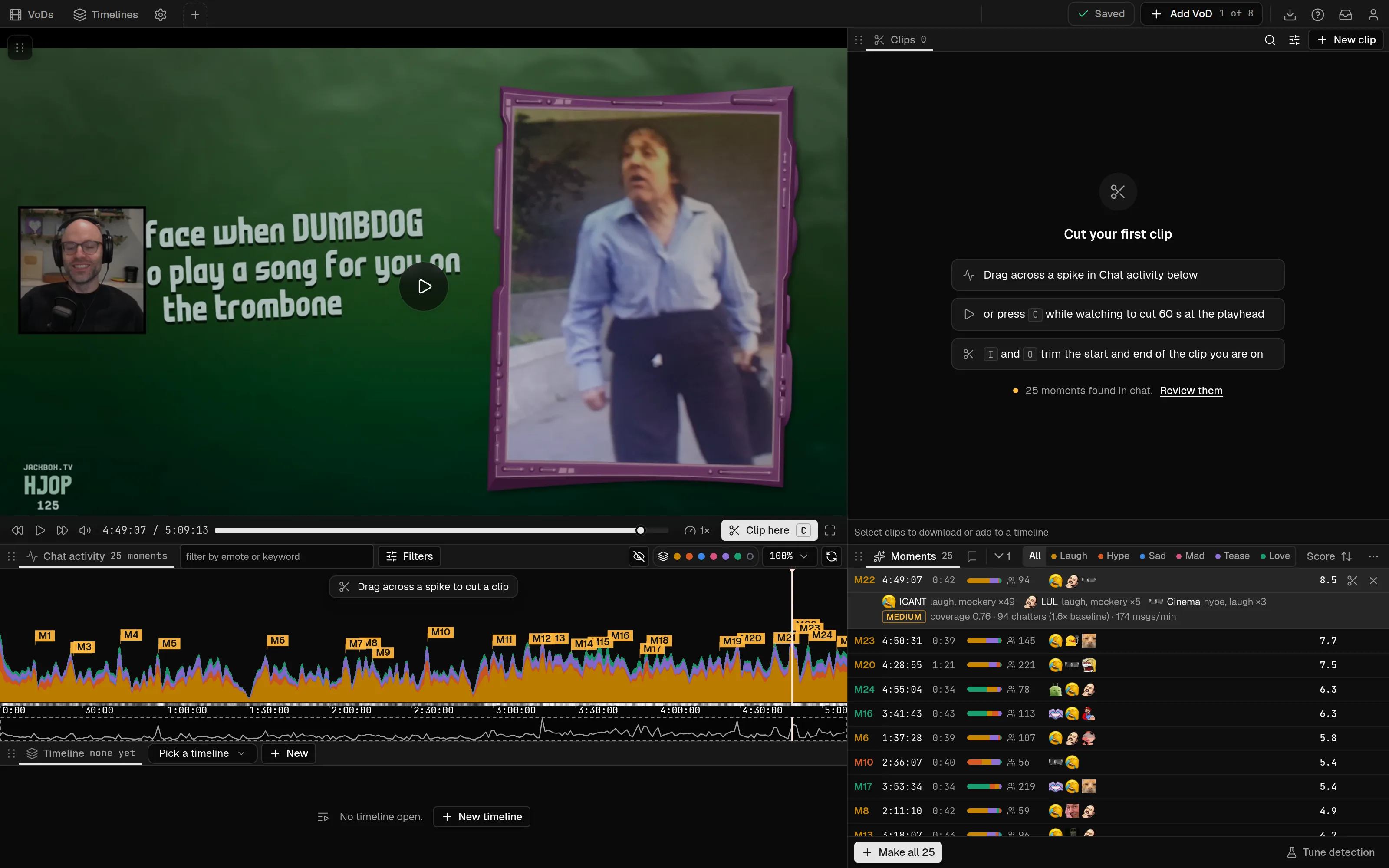
On the VoD card, select Play. It appears once both the video and the chat have finished downloading. The editor is a set of panels, including Video, Chat activity, Moments, Clips and Chat. You can drag their tabs to rearrange them.
Read the graph and the Moments list
The Chat activity graph draws chat messages across the whole stream. Tall spikes are usually where something happened. Scroll the wheel on the graph to zoom around the cursor, and click the bottom strip to jump the zoom window.
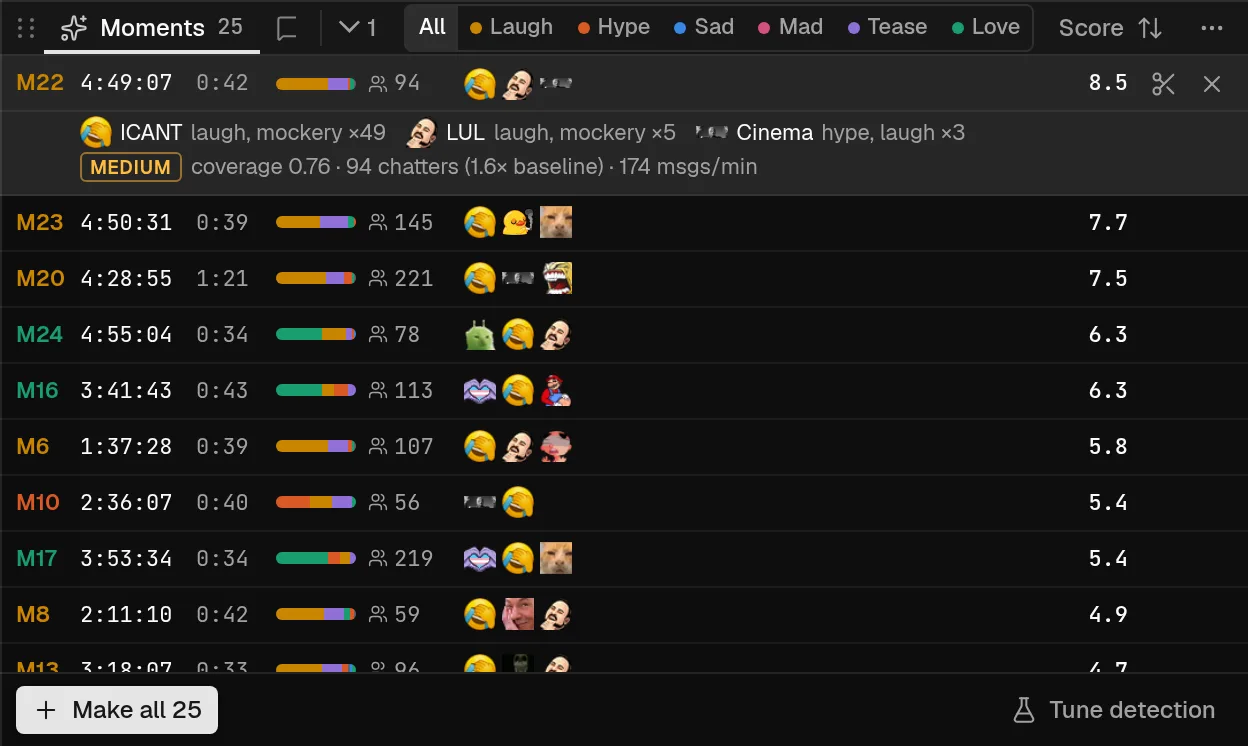
The Moments panel lists the peaks, each numbered M1, M2 and so on. Select a row to see the evidence for it: a sample of the chat and the emotes involved. Use the reaction filter at the top (All, Laugh, Hype, Sad, Mad, Tease, Love) to see one kind of moment, and the sort button to switch between score and time.
To step through them from the keyboard, press ] for the next moment and [ for the previous one. Either key jumps to that moment.
Mark in and out
Pick a moment you want to keep, then mark it any of these ways:
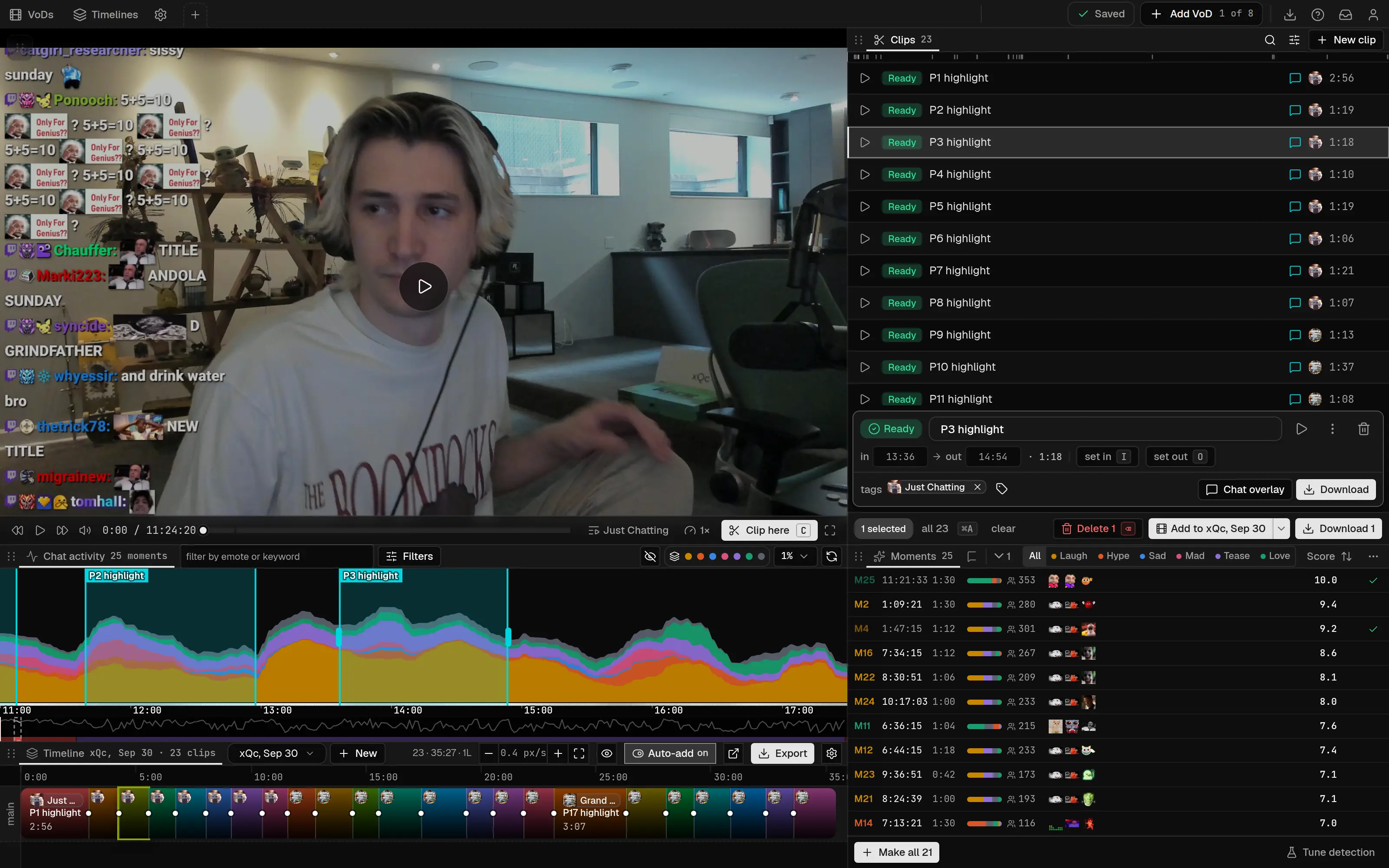
- Drag across the graph between the two times. Dragging on empty graph space creates a clip.
- Press
Cto create a clip at the playhead. It uses your default clip length, which you set with the sliders icon (Clip defaults and naming) in theClipspanel header. - Hover a moment row and select
Make clip.
Then fine-tune it. Press I to set the in point at the playhead and O to set the out point. You can also drag either edge of the clip on the graph.
A new clip is a draft. It shows a lightning-bolt icon and exists only in your browser until you save, so a refresh loses it.
Name it and give it a category
Double-click the clip on the graph, type a name and press Enter to keep it, or Escape to cancel. You can also double-click the name in the Clips panel row.
Categories need a saved clip, so save first (next step), then select the clip and use its category picker (the + control) to pick a category or create one.
Save
Press Cmd/Ctrl + S, or use the save button in the app bar. It shows how many changes are waiting, as in Save 3 changes, and turns into Saved once everything is stored. Saving turns every draft into a saved clip.
Render and download
Right-click the clip row, or open its More actions menu, and choose Render video. The render runs on our servers. The Activity panel in the sidebar shows its progress, and nothing downloads on its own. When the status reads Ready, choose Download video in the same menu. In the clip's details, the Render & download button renders and downloads in one step. The same menu has Render chat overlay if you want the chat on top, and Download video once a render is ready.
If you change a clip's start or end later, its render is out of date and the clip's details show Re-render.
Where to go next
- Clips covers naming templates, categories and bulk actions.
- Chat overlay render covers the overlay settings.
- Timeline maker bundles several clips into one file for DaVinci Resolve.
Request a VoD
Search a streamer, pick a VoD, choose a quality and download it with its chat to vod.ing. What is fetched, how long it takes and when Twitch deletes VoDs.
About the editor
The vod.ing editor opens from a VoD in your library. What the panels are, how the default layout is arranged and where to read about each part.