Live chat and search
Replay a VoD's chat next to the video with 7TV, BTTV and FFZ emotes, follow the playhead, and search every message to jump to it.
Last updated Oct 26, 2026
Vod.ing downloads the full chat with every VoD, so the Chat panel can replay it in step with the video. You can read along, or search the whole stream and jump to any message.
For how chat replay works on Twitch itself, and why some VoDs have no chat at all, see the chat replay guide on the main site.
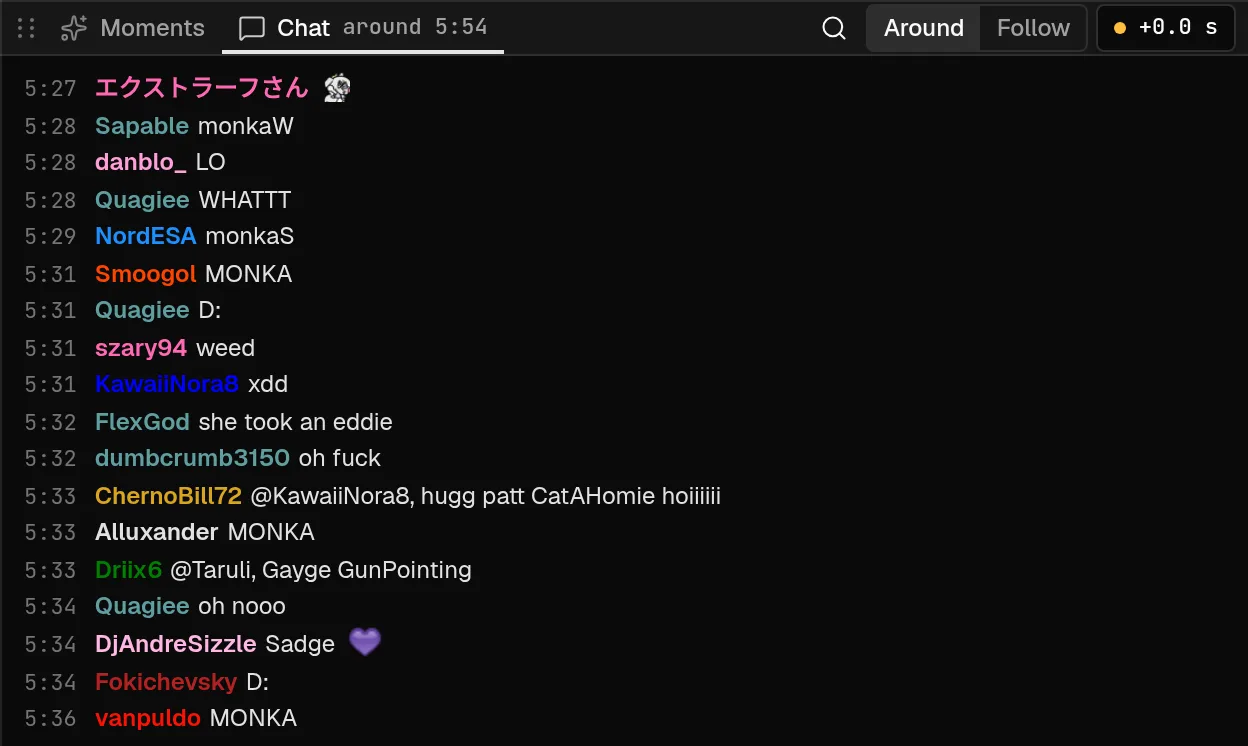
The Chat panel
Chat is a tab next to Moments in the default layout. Each line shows the time the message appears in the video, the chatter's name in their color and the message. Emotes render as images: Twitch emotes in the message itself, and the streamer's 7TV, BTTV and FFZ emotes matched by name. Hover an emote to see its name and where it comes from.
The header has a switch with two modes:
Aroundshows about 30 seconds of chat either side of the playhead.Followshows only the messages up to the playhead and scrolls as the video plays.
Scroll up to stop the panel from following the playhead. A new button with a count appears when more messages are waiting, and selecting it takes you back to the bottom.
The last control in the header shows the chat delay, such as +4.5 s. It opens the chat sync card, covered in Chat sync and delay.
Search the whole VoD
Select the magnifier in the Chat header, titled Search chat across the whole VoD, to open the search box.
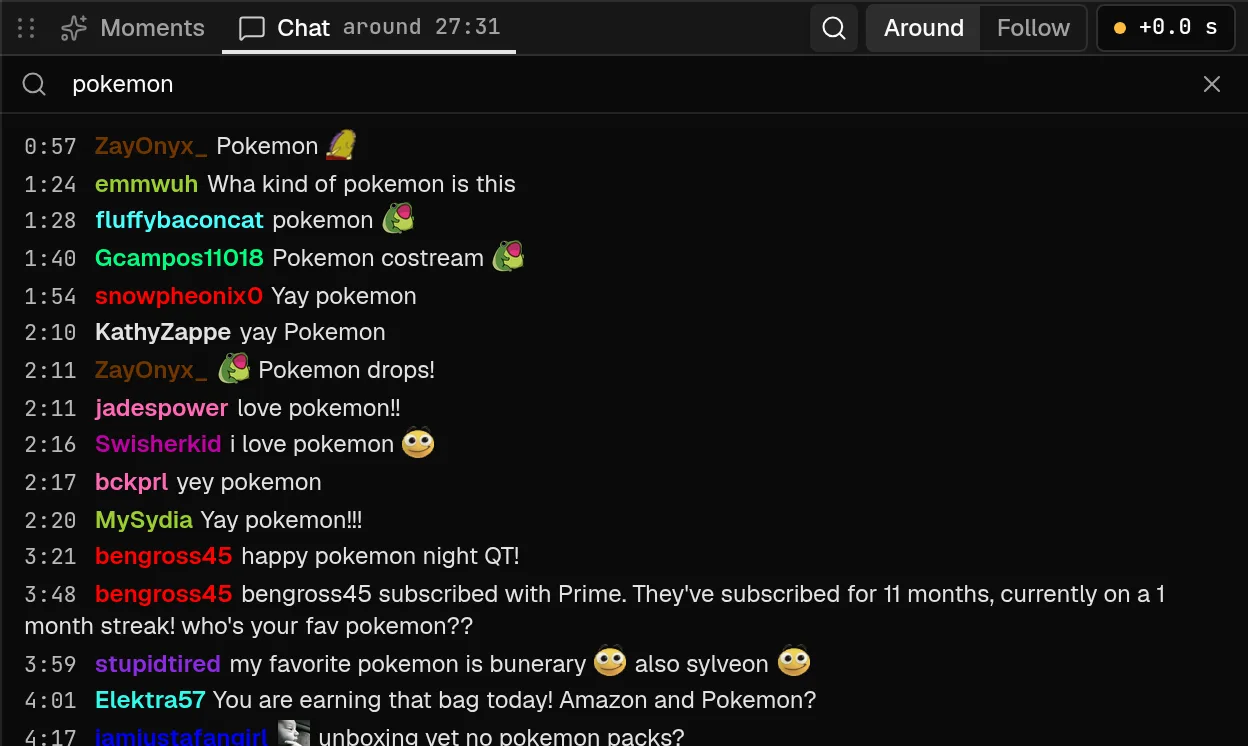
Type a word or part of a word. Every message that contains it is listed in time order, up to 300 matches, and the match ignores capitals. Each result starts with its time, and selecting the time seeks the video to that message. Search looks at the message text, so searching for a chatter's name finds the messages that mention it, not that chatter's own messages.
Press Escape, or select the close button in the search box, to go back to the live chat.
Use search to find moments
- Search an emote name to see every time chat sent it, then select the times that cluster.
- Search a phrase from the stream, a game boss or a streamer's catchphrase, to jump to it.
- Pair it with the graph filter, which draws the same emote as a curve over the whole VoD.