Moments
How the Moments panel finds peaks from chat, what the Score and the reaction mix mean, and how to turn a moment into a clip or all of them at once.
Last updated Oct 26, 2026
The Moments panel lists the stretches where chat spiked, ranked, so you can start from the best ones instead of scanning the whole VoD. The moments come from the chat itself, and each row says why it is there.
How moments are found
Detection runs on the chat of the open VoD and labels the moments M1, M2 and so on, earliest first. The same labels appear as flags on the graph.
When a VoD has reaction data, a moment is a run where one kind of reaction rises well above that VoD's normal level. The score weighs how far and how long the reactions rise and how many chatters join in. A quiet VoD still produces moments, because the comparison is against the VoD's own chat. A moment needs a minimum number of reactions of its own kind, so a few stray emotes do not count.
When a VoD has no reaction data, the panel falls back to peaks in the message count. Those rows show a small bar chart in place of the reaction mix, and the sort button reads Strength instead of Score.
Read a row
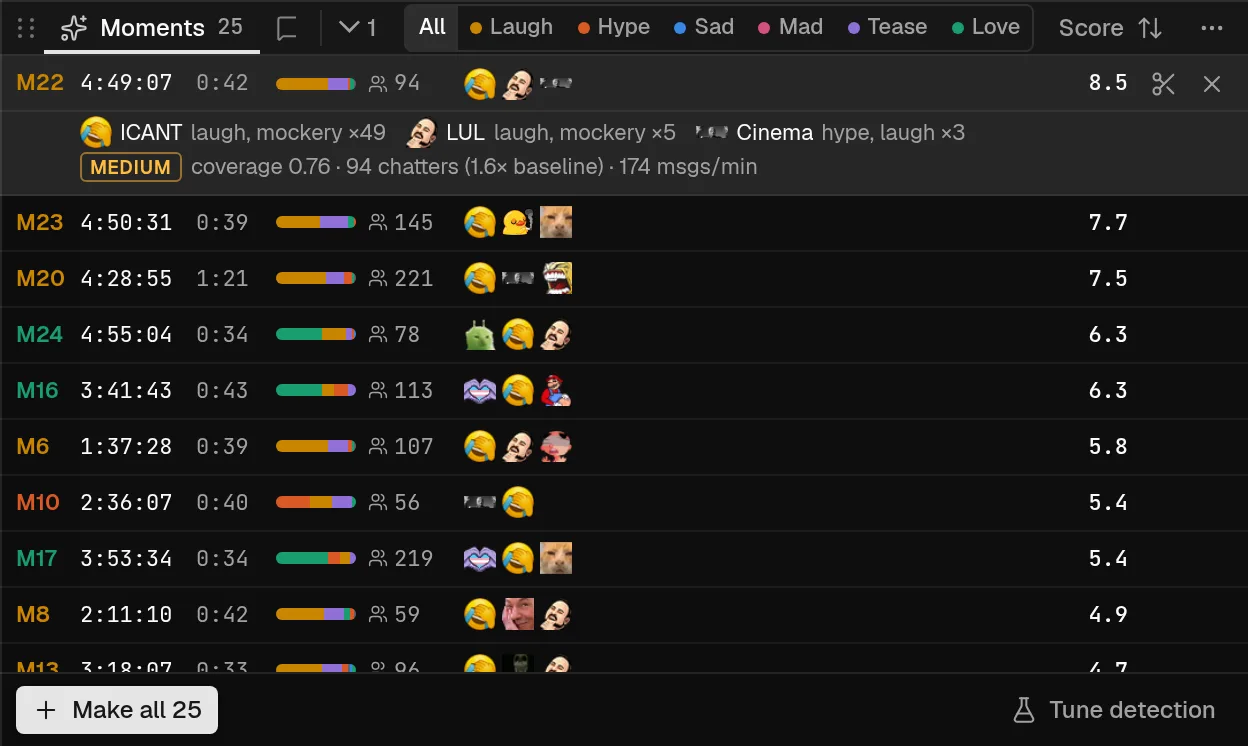
Each row shows:
- The moment number, such as
M3. - The time of the peak, and the length of the moment when the panel is wide enough.
- The reaction mix, a small stacked bar. Hover it for the percentages per layer.
- The number of distinct chatters. For reaction moments this is the count in the busiest minute.
- Up to three of the emotes chat used most.
- The
Score, from 0 to 10 with one decimal.
Select a row to seek the video to the peak and open its evidence. Rest the pointer on a row for a moment to see the same evidence in a card. The evidence shows:
- The most repeated chat line, with how many times it appeared.
- The top emotes with their counts.
- A
high,mediumorlowbadge, the chatters against the baseline for this VoD, written like1,204 chatters (3.2× baseline), and messages per minute.
A moment that already has a clip shows a check, Clipped, and its row is dimmed.
Filter and sort
The row of buttons in the panel header filters by reaction: All, Laugh, Hype, Sad, Mad, Tease and Love. Love is the wholesome layer and Mad is anger. These filters only show when the VoD has reaction data.
The sort button switches between Score and Time. In a narrow panel it moves into the Moments options menu (the three dots) next to the filters, where you can also choose the source: Chat peaks or Twitch clips. See Twitch clips.
Walls of copy-pasted text count as spam, not as reactions. The panel hides them and shows a line such as 2 spam walls hidden, with show to bring them back.
How many moments you get
The View menu in the graph header has an Auto-find section. Suggestions turns the moments on and off. The sens slider, from 1 to 10, sets the sensitivity: higher finds more. If the list is empty, raise it. If a reaction filter finds nothing, the panel suggests trying All or raising the sensitivity.
Make a clip from a moment
Hover a row to show two buttons.
Make clipcreates a draft clip for that moment's window. The draft is named after the moment and its reaction, for exampleM3 laugh.Dismissremoves the row. A dismissal lasts until you reload the editor.
Make all at the bottom creates a draft for every row that is not dismissed, not already clipped and not a spam wall. It reads Make all 12 with the number, and Make both clips when there are two. Press ] for the next moment and [ for the previous one to step through them from the keyboard.
Drafts live in your browser until you press Cmd/Ctrl + S. See Your first clips.
Tune detection
Tune detection at the bottom of the panel opens the highlight lab, a recipe-based finder. Its results can be added as draft clips in the same way.
Chat activity graph
Read how busy and how excited chat was across a VoD, filter it by emote or keyword, zoom to the second and add your own markers.
Player and keyboard shortcuts
The Video panel's controls, how to seek from the graph, the Moments list and the keyboard, and the shortcuts you need first.