Chat overlay render
Render a clip's chat as its own video, MP4 or transparent MOV, to lay over the clip in your editor. Settings, chat delay, statuses and where the file goes.
Last updated Oct 26, 2026
A chat overlay is a clip's chat messages rendered as a separate video. You put it on a track above the clip in your editor, so chat appears as it did live.
Render one
Save the clip first, then choose Render chat overlay from its More actions menu, or select the Chat overlay button in the clip's details. The render covers the clip's start to end. Its status shows in the Activity panel, and the same menu then offers Download chat overlay when it is ready.
The statuses are the ones in Clips: Queued, then a percentage, then Ready, with Failed and Stale when something needs attention. A chat render goes stale when you change the clip's start or end, or the chat delay.
Settings
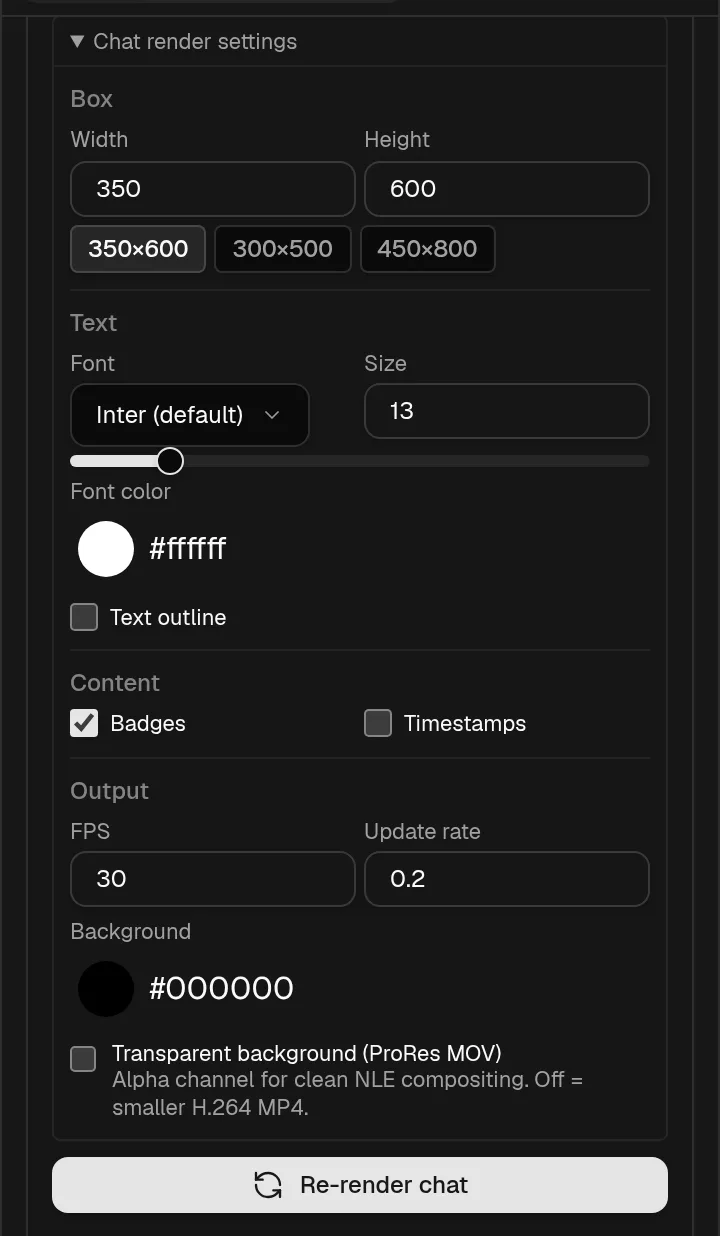
The settings are grouped as Box, Text, Content and Output. You can set defaults for every render in the editor settings under Chat render defaults, which shows a sample preview. A saved clip can also carry its own settings, edited from the timeline's clip inspector.
| Group | Setting | Default |
|---|---|---|
Box | Width and Height in pixels, with presets 350×600, 300×500 and 450×800 | 350 by 600 |
Text | Font, Inter (default) or Noto Sans | Inter |
Text | Size, from 6 up, with a slider for 8 to 40 | 13 |
Text | Font color | White |
Text | Text outline, a dark stroke behind the text | Off |
Content | Badges | On |
Content | Timestamps, each message's time | Off |
Output | FPS | 30 |
Output | Update rate, in seconds, from 0.1 to 5; lower scrolls smoother but renders slower | 0.2 |
Output | Background, the color of the opaque chat box | Black |
Output | Transparent background | Off |
In a timeline, the FPS field has a match timeline shortcut, so the overlay uses the timeline's frame rate.
MP4 or transparent MOV
With Transparent background off, you get an MP4 with the opaque Background color. This is the default.
With it on, you get a MOV with a real alpha channel (ProRes 4444), so the chat composites onto a video track with nothing behind it. The setting's own description adds that the file is larger but cleaner to edit with, and the Background color is ignored.
Flipping this setting changes the file type as well as the look, so it counts as a change to the rendered file.
Emotes and badges
The render draws Twitch emotes and the streamer's 7TV, BTTV and FFZ emotes, plus chat badges when Badges is on. Emote images are collected for each clip before it renders, and an emote that cannot be fetched is skipped.
Chat delay
Chat on Twitch trails the video by a few seconds. The delay you set in Chat sync and delay is built into each overlay. When you save a delay that changes the value, your ready overlays for the affected VoDs become stale and render again the next time you ask.
Where the file goes
When a render is ready, Download chat overlay saves it through your browser, named from your filename template, with .mp4 or .mov as the extension. In a timeline export the overlay is included next to the clip. See Timeline maker. For saving to a folder instead of the browser, see Downloads and the desktop app.
To render chat from any public VoD without adding it to your library, see Chat overlay renderer.