Twitch clips
See the streamer's most-viewed official Twitch clips from a VoD marked on the graph, and use them as a hint for where the moments are.
Last updated Oct 26, 2026
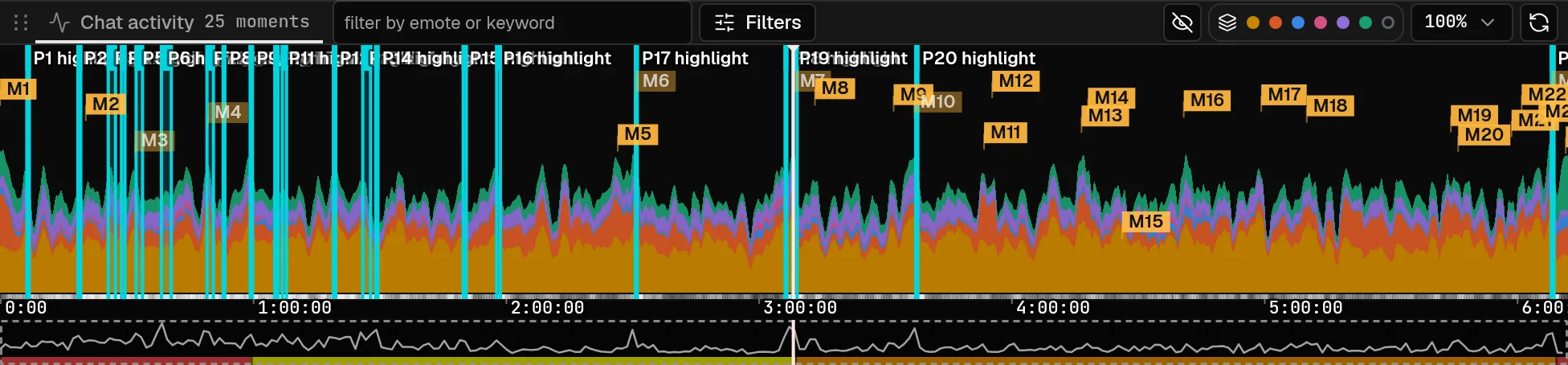
The editor can mark the official Twitch clips that viewers made during a VoD on the graph. They show what the audience already noticed, which makes them a quick cross-check against your own moments.
Load the clips
Twitch clips are not loaded until you ask for them.
- In the
Momentspanel, open theMoments optionsmenu (the three dots) and chooseTwitch clipsas the source. - Select
Load. The panel saysOfficial Twitch clips for this VoDbefore you do. - The list fills with each clip's title, the time in the VoD, its length and its view count, most-viewed first.
Select a row to seek the video to that point. Refresh loads the list again. If Twitch cannot be reached, the panel shows Twitch error: with the reason, and Retry. If there are none in the VoD's time window, it says No clips found in this VoD window.
Show them on the graph
The first time a load finds clips, the graph starts showing them. To turn them on or off yourself, open the View menu (the eye button in the graph header) and use Twitch clips under Clips.
The graph draws the most-viewed clips only: top 10 on graph by default, as the panel reports. A clip that overlaps a more-viewed one that is already shown is skipped, so one moment does not draw several stacked bands.
What they tell you
- A Twitch clip on top of a tall peak marks a moment that viewers clipped and chat reacted to.
- Compare the clips with the Moments list and the graph. Where they agree, the moment is worth a look first.
Twitch clips are references. They are not saved in your Clips panel and vod.ing does not render them. To make your own clip of the same moment, mark it as usual.
Live chat and search
Replay a VoD's chat next to the video with 7TV, BTTV and FFZ emotes, follow the playhead, and search every message to jump to it.
Chat sync and delay
Why chat can run a few seconds late next to the video, how to set the delay for a streamer or one VoD, and what happens to rendered overlays.