Messages and pictures
Put single chat messages or a small chat moment on the video, pick their style and animation, and add emotes, stickers and your own pictures.
Last updated Nov 24, 2026
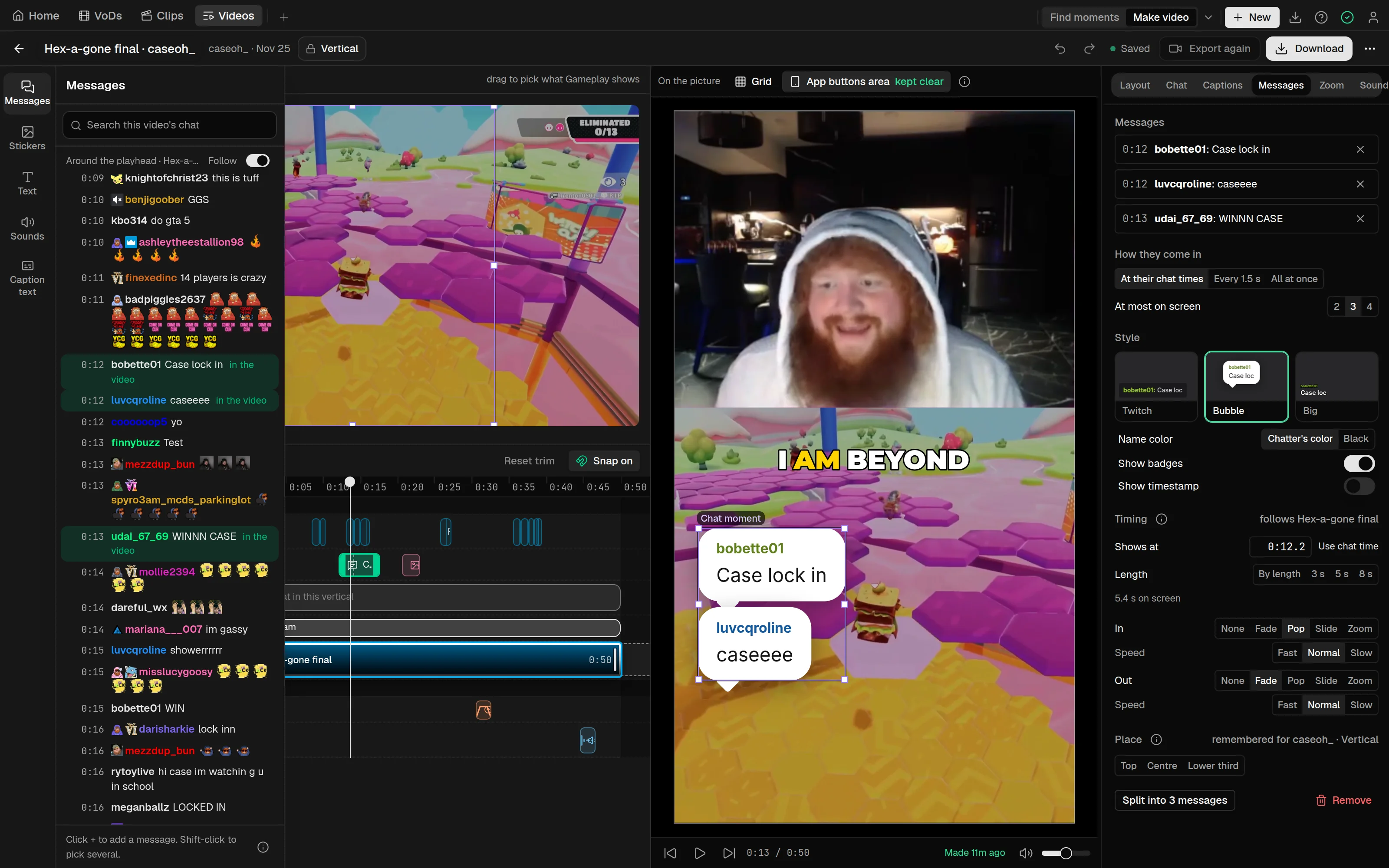
Chat messages, emotes, stickers and your own pictures sit on the Overlays lane of the Video editor and are drawn into the finished video. This is not the chat overlay, which renders the whole chat of a clip as a video of its own; the Chat in the video switch on the Chat lane still puts the whole chat in when you want it.
Add a message
- In the editor's Live chat, open a message's menu and choose
Add to video. The submenu lists your videos with a clip that holds that moment, with the time the message lands at (at 0:42). Pick one to add the message there.New vertical with this messagemakes a 30-second clip, from 10 seconds before the message to 20 seconds after, and opens its vertical. - In the Video editor, the library's
Chattab shows the chat of the clip under the playhead, each message with the time it shows in the video.Add at its timeputs one message on the picture.
A chat moment
Pick two or more messages in the Chat tab. A bar shows how many are picked, with Add as one chat moment and Add one after another.
A chat moment holds up to 12 messages, none later than 29 seconds after the first. In its inspector:
Messageslists them with their times; theXon a row drops that message.How they come in:At their chat times,Every 1.5 sorAll at once.At most on screen:2,3or4.Split into N messagesturns the moment back into single messages.
Style and timing
- The style cards are
Twitch,BubbleandBig. A message on a vertical starts inBubble.Twitchhas a background behind it:Dark,LightorNone. InandOutpick an animation each:None,Fade,Pop,SlideorZoom, with a side forSlide. New messages come in withPopand go out withFade.Shows atsets the start, andLengthisBy length,3 s,5 sor8 s.- Drag the box on the picture (a corner makes it bigger), or pick
Place:Top,CentreorLower third. The next message of that streamer starts at the same spot. - A single message has
Download PNGfor an image of it at the box's size.
Pictures
The library's Pictures tab has, from the top:
Your pictures, used in all your videos, withUpload.Stickers: eight of ours.- The 7TV, BTTV and FFZ emotes of each streamer in the video. Typing in the search box also lists the global emotes of the three.
Double-click a picture or press its + to add it at the playhead, or drag it onto the timeline. Animated emotes keep moving in the preview and in the finished video.
A selected picture has Shows at and Length, Size, Opacity, Place (Top, Centre or Lower third), the same In and Out animations as a message, Shadow (a soft dark shadow so a light picture stays readable), Moves to (the picture glides from its box to a second, dashed box over its length), Replace (pick another picture and keep its timing, place and animation) and Copy to every clip.
Your own pictures
Upload takes PNG, JPG, WebP or GIF files up to 20 MB. Still pictures larger than 4096 pixels are scaled down, animated ones to 1280 pixels, and GIFs and animated WebPs play in a loop (up to 30 seconds). SVG is not accepted. Uploading needs a plan or an active trial, and your uploads count toward your plan's storage.
In DaVinci Resolve
The DaVinci Resolve project carries messages and pictures as image files placed where they sit: messages as PNG files (an animated emote in a message shows its first frame), stickers, emotes and your pictures as PNG files, or GIFs when animated. Their animations, a picture that moves and a picture's shadow are left out; a marker shows where a picture moves or has a shadow. See Open it in DaVinci Resolve.
Text
Put a title or a hook on the video in a caption look, highlight words, place it, animate it, and know what goes into the finished video and the DaVinci Resolve project.
Sounds and zoom
Add built-in sound effects or your own sounds, set volume and fades, lower the stream under a sound, set a clip's volume, and add Punch-in, Slow push and Zoom to box zooms.