Captions
Make captions from a clip's sound, fix the words, pick one of four looks, and take them along burned in, as SRT or VTT files, or in the DaVinci Resolve project.
Last updated Nov 26, 2026
Captions turn the speech in a clip into timed words on the picture. They work on a vertical and on any video in the Video editor.
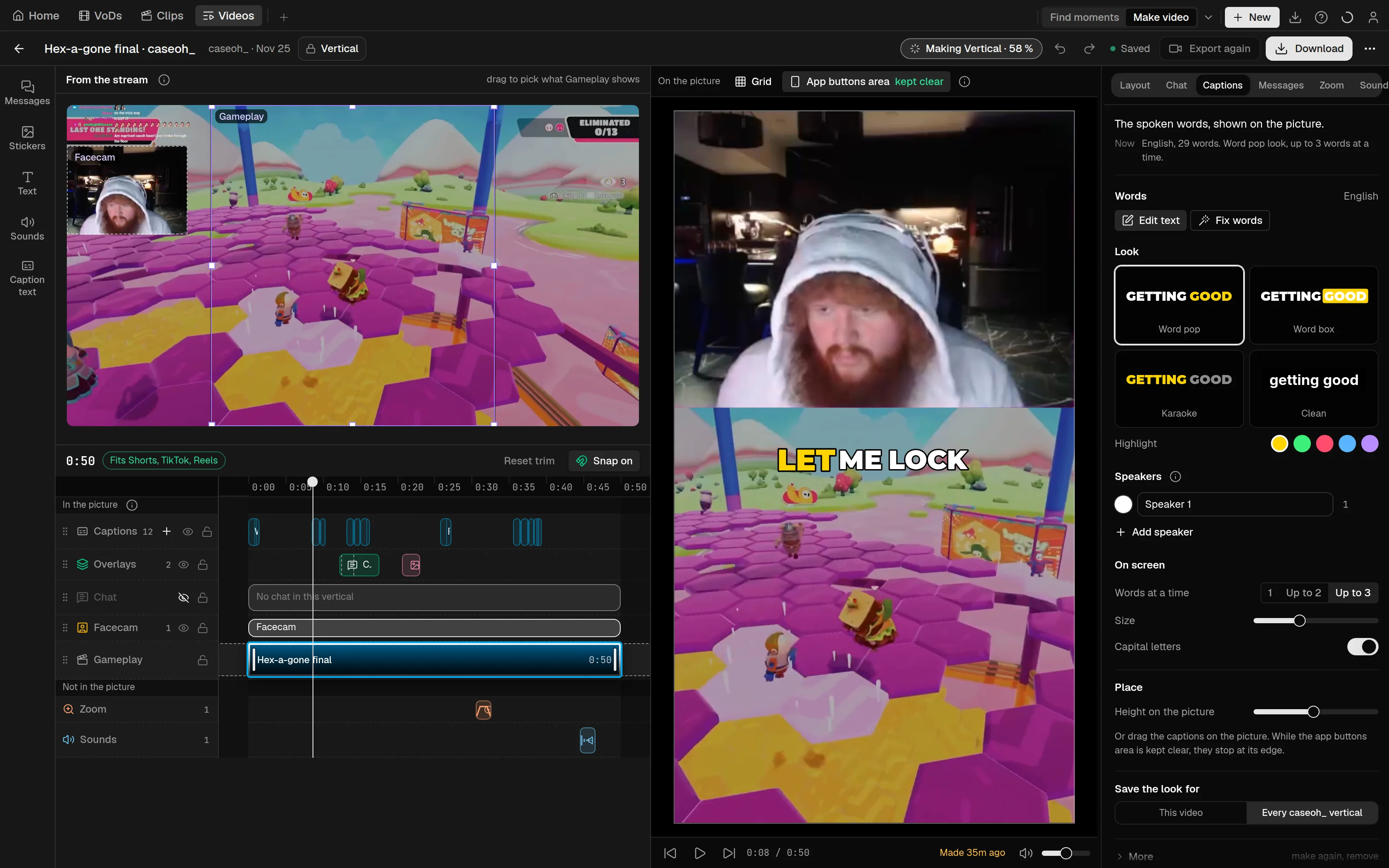
Make captions
- Select a clip and open the
Captionstab. - Pick the language.
Detectfinds it for you; the list has 100 languages. A language you pick is remembered for that streamer. - Press
Make captions. Only this clip's sound is used, and it usually takes a few seconds.
The words appear on the picture and in the Captions row of the timeline. A clip can be up to 15 minutes long. Where Twitch muted the sound, there is nothing to caption, and the tab says so.
Fix the words
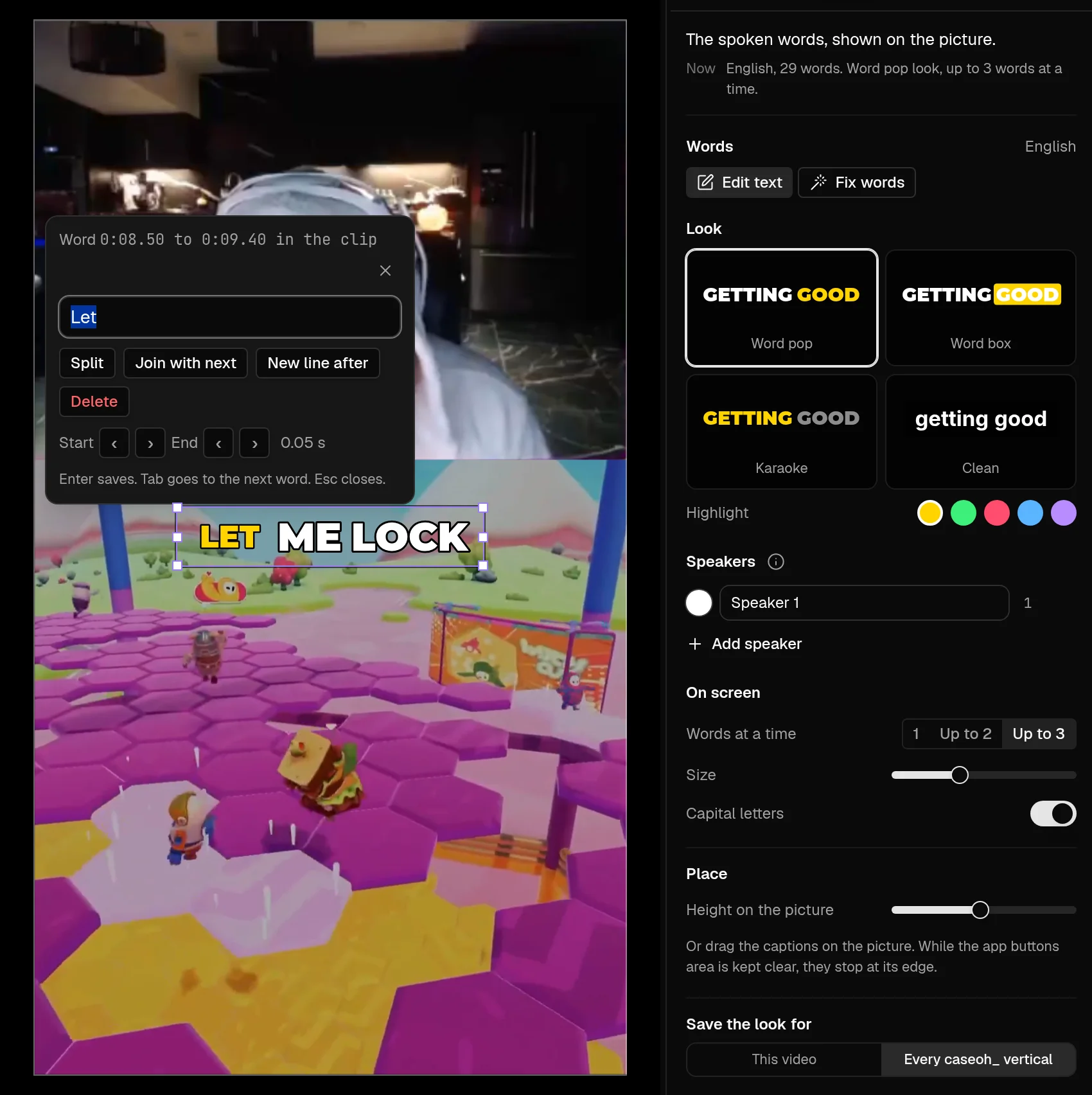
- Click a word on the picture or in the
Captionsrow, type the fix and pressEnter.Tabgoes to the next word. - The word's box also has
Split,Join with next,New line after,Deleteand buttons to move the word's start and end. - Words the transcription was unsure of are marked, so you can check those first.
- Drag the line between two words in the row to change their timing.
Fix words keeps a list for the streamer: what was heard and what to write instead. Every new caption of that streamer uses it, which helps with names, emotes and games. Suggestions come from the streamer's emotes and the chat around the clip.
Remove filler words hides um, uh and the like in English, German, Japanese, Spanish and French. The sound stays as it is, and Undo brings them back.
The look
- Four looks:
Word pop(the default on a vertical),Word box,KaraokeandClean(the default on a wide video). Highlighthas five colors.Words on screenis 1, up to 2 or up to 3.Size,Height on the pictureandCapital lettersdo what they say.- On a vertical, the
App buttons areaswitch over the picture marks where TikTok, Reels and Shorts put their buttons, and keeps the captions out of it. Set it to ignored to place them anywhere. It is approximate. Save the look forisThis videoor every video of that streamer in the same shape.
Take them along
- Captions are burned into the finished video.
SRTandVTT, underSubtitle file, download them as subtitle files.- The DaVinci Resolve ZIP carries them as
captions.srt.
Limits and privacy
Captions have no separate price. Each plan has a monthly limit on how much clip time you caption, the same size as its finished-video allowance. A trial can caption up to 30 minutes.
Only the clip's sound is sent to our transcription provider, which does not keep it. The provider is named in the privacy policy.
Vertical videos
Turn a clip into a vertical video for Shorts, TikTok and Reels. Layouts with a movable facecam, the trim bar and length meter, captions, chat messages, rendering and downloading.
Text
Put a title or a hook on the video in a caption look, highlight words, place it, animate it, and know what goes into the finished video and the DaVinci Resolve project.