 BRO
BRO


What "chat overlay" actually means
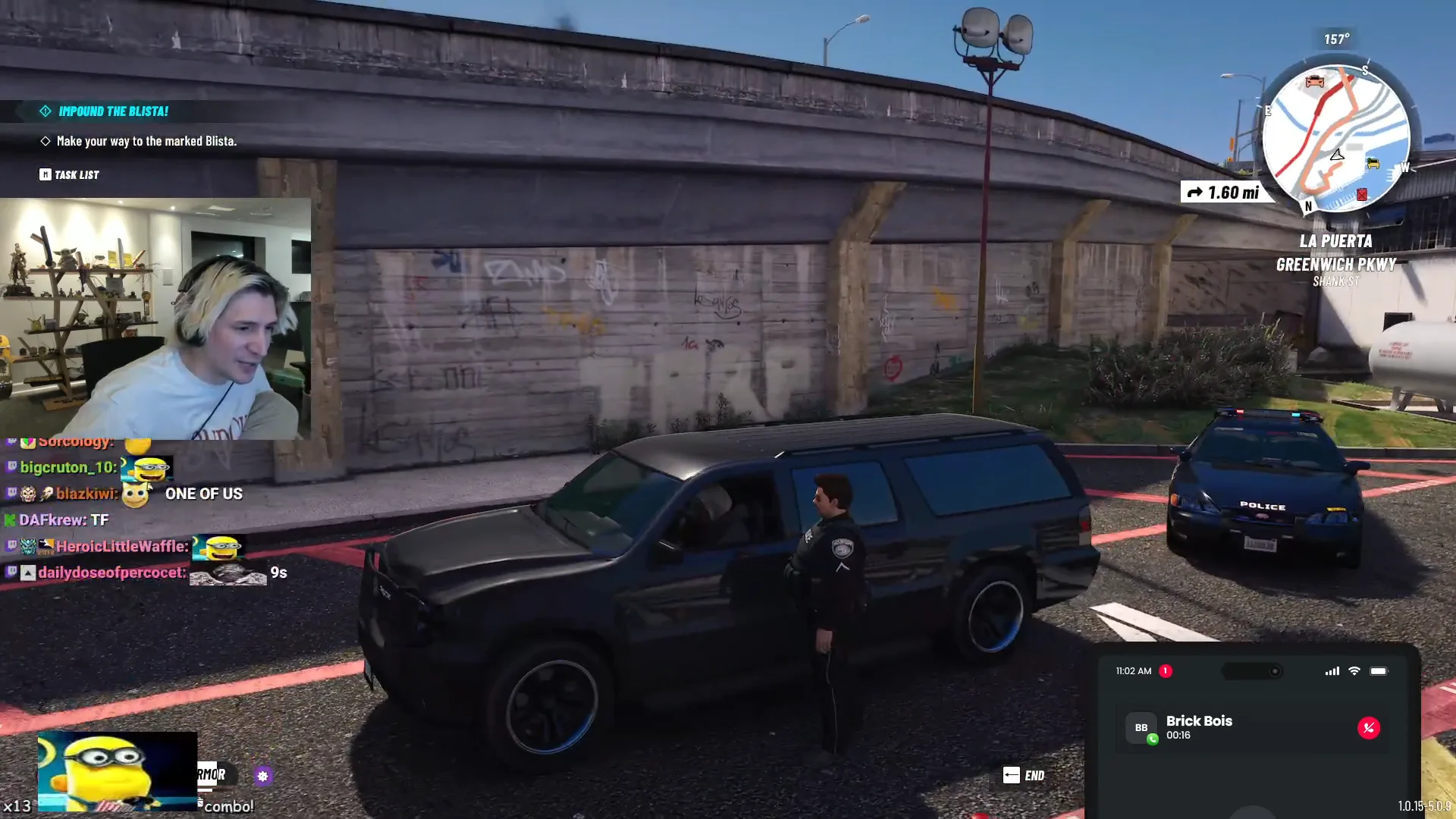
A chat overlay is a transparent video clip with the same duration as your edit, an alpha channel where there are no messages, and fully-rendered chat lines (text + emotes + badges) animating in and out elsewhere. You drop it as a track above your gameplay footage in Resolve or Premiere, and the chat appears overlaid on the stream.
It is not a screenshot, not a static image sequence, and not a Twitch chat-replay embed. Those alternatives all have failure modes: screenshots desync, image sequences balloon project size, embeds break offline.
Source: chat JSON, not chat HTML
You need the raw chat as JSON for the time window you are clipping. The JSON contains per-message offset (seconds since stream start), user color, badges, message fragments (text + emote references), and timestamp. That is enough to render arbitrary chat overlays without going back to Twitch.
TwitchDownloader produces this format natively. yt-dlp does not. If you are building from scratch, the Twitch GQL chat-replay endpoint returns the same structure.
Emote resolution
Twitch chat in 2026 is mostly 7TV emotes by message volume on most large channels. A chat overlay that resolves only native Twitch emotes will render most messages as plain text, which is visually wrong and editorially dishonest. The full resolution path is: native Twitch global, channel-tier subscriber emotes, 7TV global + channel set, BTTV global + channel set, FFZ global + channel set.
7TV and BTTV ship animated WebP/GIF emotes. Rendering these as static frames loses the joke; render them as animated to keep parity with how chat actually saw them.
Output format: MOV with alpha vs ProRes 4444
For modern editors, a QuickTime MOV with VP9 + alpha keeps its transparency in Resolve and Premiere on Mac and Windows. For older Premiere on Windows, ProRes 4444 in MOV is the safer container. Both preserve transparency. AVI with PNG is the brute-force fallback if alpha gets stripped in your NLE.
Avoid green-screen chroma key overlays. They look fine when chat is mid-frame but produce edge artifacts on emotes (which are anti-aliased PNGs/WebPs that key poorly).
FCPXML for clip-level integration
If you have already cut a timeline with clip in-points and out-points, an FCPXML export aligns the chat overlay precisely to your clips. Resolve reads FCPXML 1.10. In Premiere, skip the XML and use the MOV directly on a track.
The FCPXML lists each clip's start, duration, and asset reference. The chat overlay MOV is the single asset; the NLE places it on a video track at the same start time as the gameplay footage.
The cheap way to test
You do not need a paid pipeline to evaluate this. /free-chat-render renders a chat overlay for any clip, no account required, ten renders a day. Try it on a 30-second clip first to see how the overlay looks in your editor of choice before committing to a workflow.