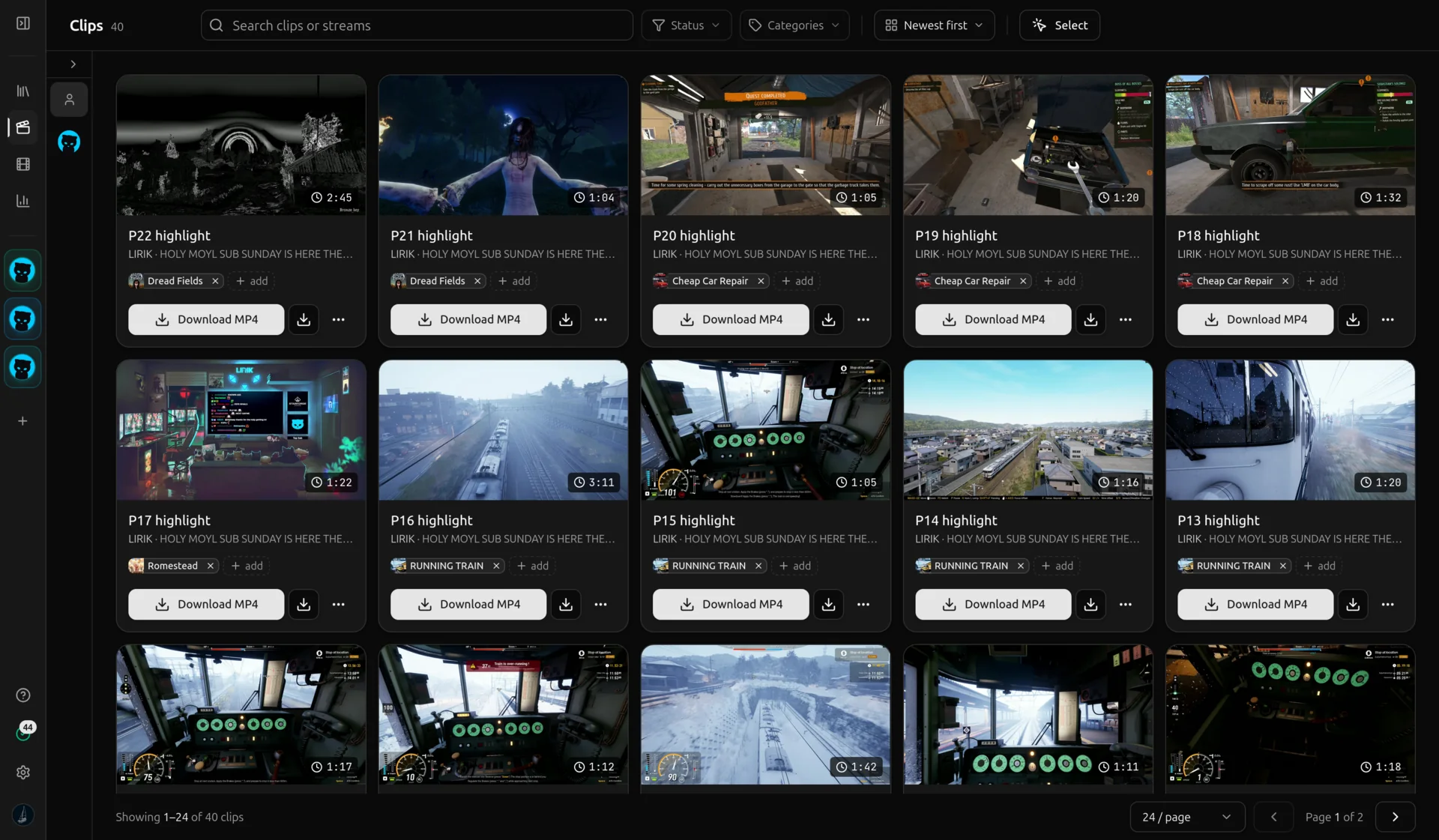
Use the chat activity graph as your timeline. Drag to bracket, tweak in the sidebar, tag with a category. Build compilation reels from a shared library across VoDs.
The graph doubles as a timeline. Drag from second N to second M and a clip bracket appears on top of the chat activity. The selected window highlights so you can see what you captured at a glance.
Fine-tune the start and end with second-level inputs in the sidebar. No more nudging playheads pixel by pixel.
Detail / 02
Categories and naming templates
A clip without a category is harder to find later. Voding ships with a category system and color codes so you can split clips into funny moments, big plays, reactions, and whatever else fits your channel.
Naming templates let you fill in placeholders like streamer name, publish date, clip index, and start time. Run a template across a category and every clip is consistently named before export.
Detail / 03
Export when you are ready
Each clip renders to MP4 on our backend, ready to download. Grab it from the editor or from the Clips page. Pair with a chat overlay for a finished composite.
Detail / 04
Compilation reel in 20 minutes, a walkthrough
Step one: open a fresh VoD and run the chat-spike finder on conservative. Around fifteen markers appear on the chat activity graph. Step two: click each marker, watch the ten seconds around the peak. Convert keepers to clips with a single click; the start and end snap around the peak automatically.
Step three: tag each kept clip into a category, say "best moments of last stream". Step four: jump to the Clips page, filter by that category, multi-select, hit "Make timeline". The timeline maker arranges the clips in chronological order; drag to reorder, drop the ones you do not want. Step five: render. The compilation appears as an MP4 in around two minutes for a five-minute reel. From "opened VoD" to "uploadable montage" is twenty minutes, most of which is watching the candidate clips.
Detail / 05
Category strategy for a channel you edit weekly
A clean category system is the difference between "I made fifty clips and now I cannot find anything" and "I am building a library". The setup that scales: one category per content type (funny, big plays, reactions, drama, technical) plus one per recurring theme (subathon week, anniversary stream, charity stream). Colour codes are visual, so you can scan the Clips page and see the distribution of your last month at a glance.
Naming templates handle the repetitive work. Set a template like "{streamer}-{category}-{date}-{index}" and every clip you tag into that category gets a consistent filename when you bulk-rename. The result is a library where every clip filename already says who, what kind, when, and which of the day's entries it is, searchable from your OS even after you download.
About clip creation
Drag horizontally on the chat activity graph. A clip bracket appears. The clip opens in the sidebar where you can adjust start, end, name, and category.
A reusable label. Common ones are funny moments, big plays, reactions, compilation. Categories make it trivial to build a compilation reel later.
Yes. Voding supports naming templates with placeholders for streamer name, VoD publish date, clip index, and start time. Apply them to a category in one click.
On Voding under your account, downloadable as MP4. Your editor lists every rendered clip across every VoD on the Clips page.
Still wondering about something? The team hangs out in our Discord and
answers there fastest.